

A dirty sensor, a weak connection, or a faulty driver usually breaks the chain between your mouse and cursor. Your hand keeps sliding across the desk while the pointer sits frozen in one corner of the screen.
That lag between your movement and the screen stalls your work. The good news is that the fix rarely means buying a new mouse. At Movea Tech, we trace most tracking problems back to three failure points you can check in minutes.
This guide covers each cause, the connection checks that rule them out, and the Windows settings that keep your cursor responsive.
Your mouse cursor stops tracking your movement when the sensor, the connection, or the software fails to pass input along. Each link hands data to the next, so one weak point stalls everything after it. Below are the three causes that fail most often. Start with the sensor, since you can clean it in about 30 seconds.
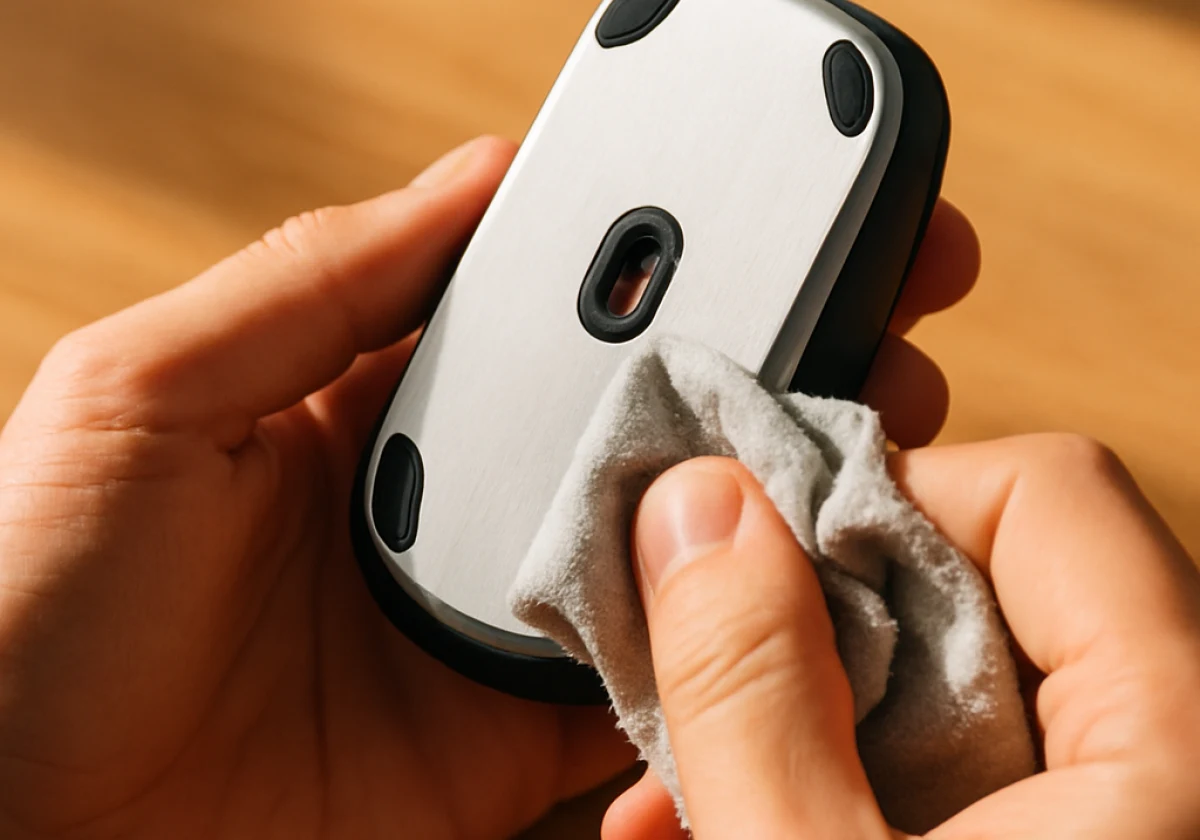
The optical sensor under your mouse reads surface texture, so dust, lint, or even one stray hair can block the light it needs. Flip the mouse over and wipe the lens with a microfiber cloth. Then test it on a plain, non-reflective surface.
Glass desks and glossy surfaces scatter light from most standard optical sensors. A $5 mouse pad often fixes behavior that looks far more serious.
A wireless mouse often starts to lag or stutter as its battery runs low, and the problem can look exactly like failing hardware. Fresh AA or AAA batteries clear this up in most cases because low power can weaken the mouse’s wireless signal and cause lag or stuttering.
For a Bluetooth mouse, check the battery level under Bluetooth & devices in Windows Settings, since many models report it there. Check rechargeable models too. A charging cable that isn’t fully seated can leave the mouse only partly charged by morning.
Background software claims input too. Screen recorders, remote desktop tools, and some antivirus scanners hold the pointer while they run.
Press Ctrl, Alt, and Delete, open Task Manager, then close whatever launched just before the freezing started. One conflicting app explains more cursor problems than malware does.
Safe mode settles the question, and honestly it’s the first test we run. In that mode, Windows loads only its own mouse drivers, so nothing else can get in the way.
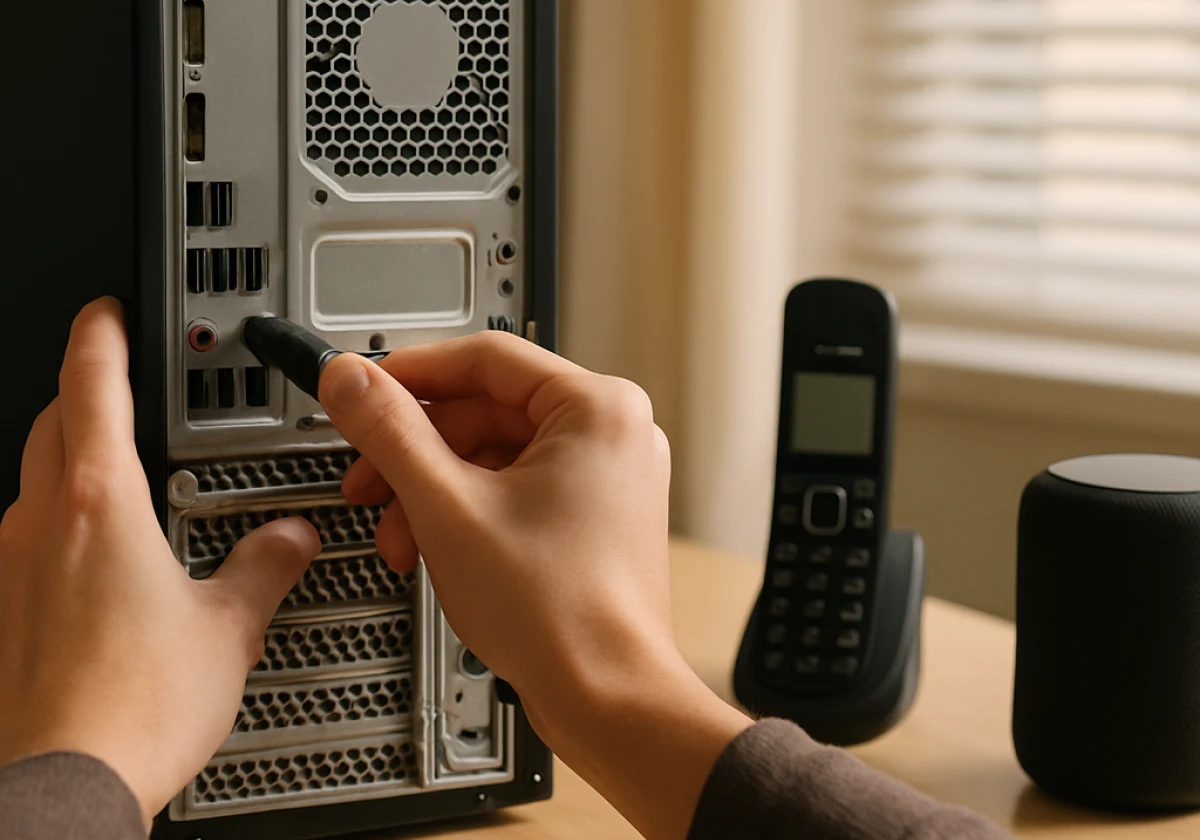
If cleaning, fresh batteries, and closing apps don’t help, the fault often sits in the receiver or the port. Wireless signals travel a short distance, and nearby devices or a weak port can interrupt them. Here are three checks to run before you buy a replacement:
Test the same unit on another computer first. That single step shows whether the problem travels with the hardware or stays with the machine. Plenty of users across the United States stop their troubleshooting right there. A wired USB mouse deserves the same test, since a frayed cable breaks the physical connection without looking damaged.
Finally, test the mouse on another computer, including wired models, since a cable can break internally without visible damage. If the problem follows the mouse, it’s a hardware fault. But if it stays with your PC, look at the port or Windows settings next.

Once the connection checks out, a driver update or a single setting change often fixes the problem. Windows installs generic drivers that handle basic movement, but they may not fully support gaming or multi-button mice.
Right-click the Start button and open Device Manager. Expand “Mice and other pointing devices, then right-click your mouse and choose “Update driver.” If Windows finds nothing newer, choose Uninstall device and restart your PC so Windows reinstalls the driver cleanly.
While you’re in Device Manager, look for a yellow warning icon next to any entry. That icon flags a device Windows has detected a problem with.
Next, check your mouse settings. Open the Control Panel, select Mouse, and go to the Pointer Options tab. Clear the “Enhance pointer precision” box so Windows stops changing pointer speed based on how fast you move. The slider directly above it sets pointer speed, and the middle notch is the Windows default.
Also check USB power settings. In Device Manager, expand “Universal Serial Bus controllers,” open each USB root hub, and select the Power Management tab. Uncheck “Allow the computer to turn off this device to save power” so Windows can’t cut power to your receiver.
Heads-up: Major Windows 11 updates can corrupt mouse drivers, and outdated chipset drivers can cause the same stutter. Check your PC or motherboard maker’s website for the latest chipset drivers.
Now that you know the common causes, match your symptom to the fastest repair in the table below. Each row pairs a behavior of your computer mouse with the check that clears it, and the list covers hardware issues as well as software ones.
Most mouse problems land in one of these four rows. Read the left column first, then work on the matching fix.
| Symptom | Likely cause | Fastest fix |
|---|---|---|
| Cursor jumping around | Dirty sensor or glossy desk | Clean the sensor, and add a mouse pad. |
| Cursor lag on wireless | Low battery or interference | Replace batteries and move the receiver closer. |
| The pointer freezes briefly. | Driver conflict or background app | Reinstall the driver, and close recording tools. |
| Nothing moves on a wired mouse. | Damaged USB cable or dead port | Try another port; test another computer. |
Stop at the first fix that works, because changing several things at once hides which one solved the problem. Cleaning the sensor fixes jumping cursors more often than any other step, so start there.
Most tracking failures trace back to a sensor you can wipe, a connection you can reseat, or a driver you can reinstall. None of that needs a technician.
Work through the checks in order and give each one a full minute before moving on. A mouse not tracking on a second machine has earned its retirement, so confirm that before calling it dead.
Movea Tech builds motion-sensing technology for people who depend on precise control. Contact our team to find a mouse that suits your setup and tracks accurately.