

Your cursor jumps, freezes, or drags across the screen, and the first instinct is to blame the mouse. But before you replace it, check the material underneath. Glass desks, glossy tables, uneven wood grain, and dusty pads can stop the sensor from tracking correctly.
Surface testing is part of the work we do at Movea Tech. We build motion-tracking technology, and surface-related detector issues come up constantly with everyday users and gamers alike.
In this guide, you’ll learn how optical and laser sensors read the workspace beneath them, and why some materials confuse them completely. We’ll also cover a few quick tests to figure out what’s going wrong. You don’t need a new mouse, at least not yet.
A computer mouse reads the surface beneath it using a small image sensor. The sensor captures images at 1,000 to 12,000 frames per second, depending on the model.
Onboard chips compare each new image against the last one to detect movement and calculate direction (yes, your mouse is basically taking thousands of tiny photos a second). That process is how the cursor tracks so precisely on most surfaces.
The mouse sensor relies on the material beneath it for accurate tracking. It needs a clear, consistent image to detect movement properly. When the surface is too smooth, too reflective, or too transparent, the detector cannot lock onto enough detail to measure movement correctly.
Here’s how that image-capturing process works differently depending on whether your mouse uses an optical or a laser sensor:
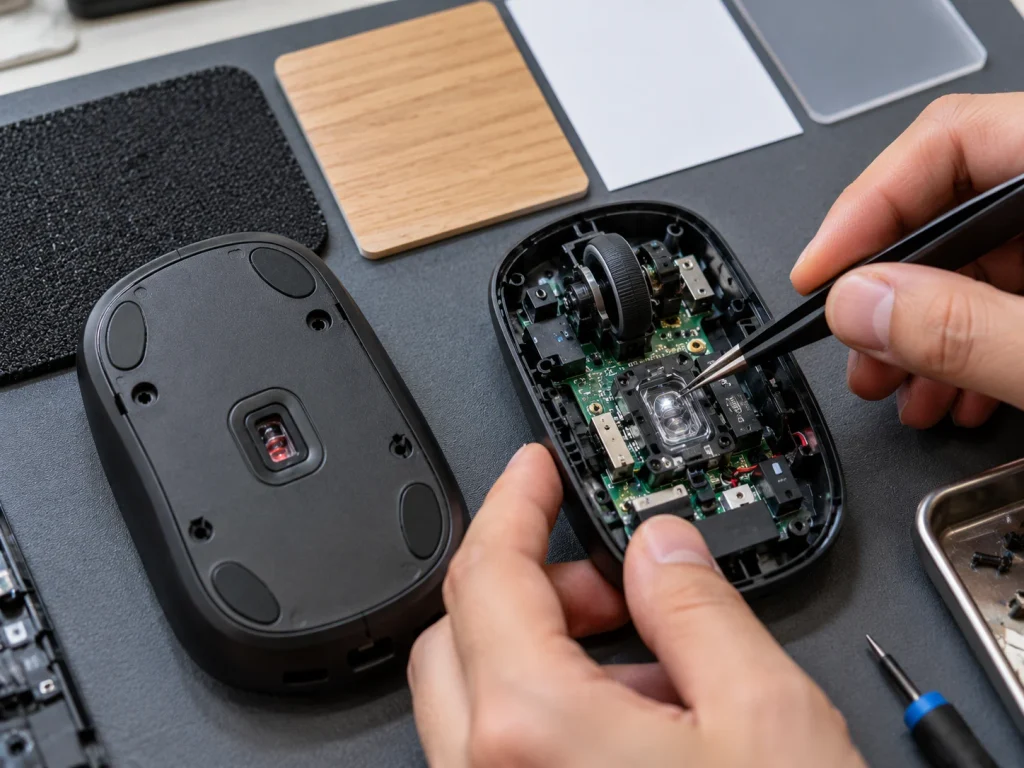
You’ve probably never given this a second thought, and honestly, why would you? Optical mice use a light-emitting diode as their light source, shining it onto the workspace at a low angle. The detector reads the shadows and texture that light creates to detect micro-movements with high accuracy.
Optical sensors work best on matte, textured surfaces, since the light needs some texture to bounce off unevenly and form a readable pattern. A graphic designer working on a plain desk mat, for example, gets precise tracking without ever thinking about the layer. Once that area turns glossy or smooth, though, optical mice start to struggle.
Now swap the LED for a laser, and the story changes a bit. Laser mice use a laser diode instead of an LED. That laser light hits the surface at an angle similar to optical sensors. Unlike optical mice, a laser reader can pick up finer material detail, including texture that’s invisible to the human eye.
That higher sensitivity gives laser mice an edge on most desk finishes, including some glossy materials that would confuse an optical detector. Very reflective or transparent materials still cause tracking problems for both sensor types, which is exactly why glass surfaces trip up nearly every mouse.
Optical and laser mice work well on most desks, but they respond differently once things get shiny or uneven. We’ve tested both reader types across four materials. And performance drops very fast when the sensor cannot find enough contrast to track movement.
So, here’s a quick breakdown of how each type of mouse works across common surfaces:
| Surface Type | Optical Mouse | Laser Mouse |
| Wood desk | Tracks well | Tracks well |
| Cloth mouse pad | Tracks well | Tracks well |
| Glossy plastic | Struggles | Tracks with minor issues |
| Glass or transparent | Fails | Fails |
The table makes it clear that neither tracker solves every area problem on its own. Once you know which category your desk falls into, picking the right mouse or the right pad gets a lot easier.
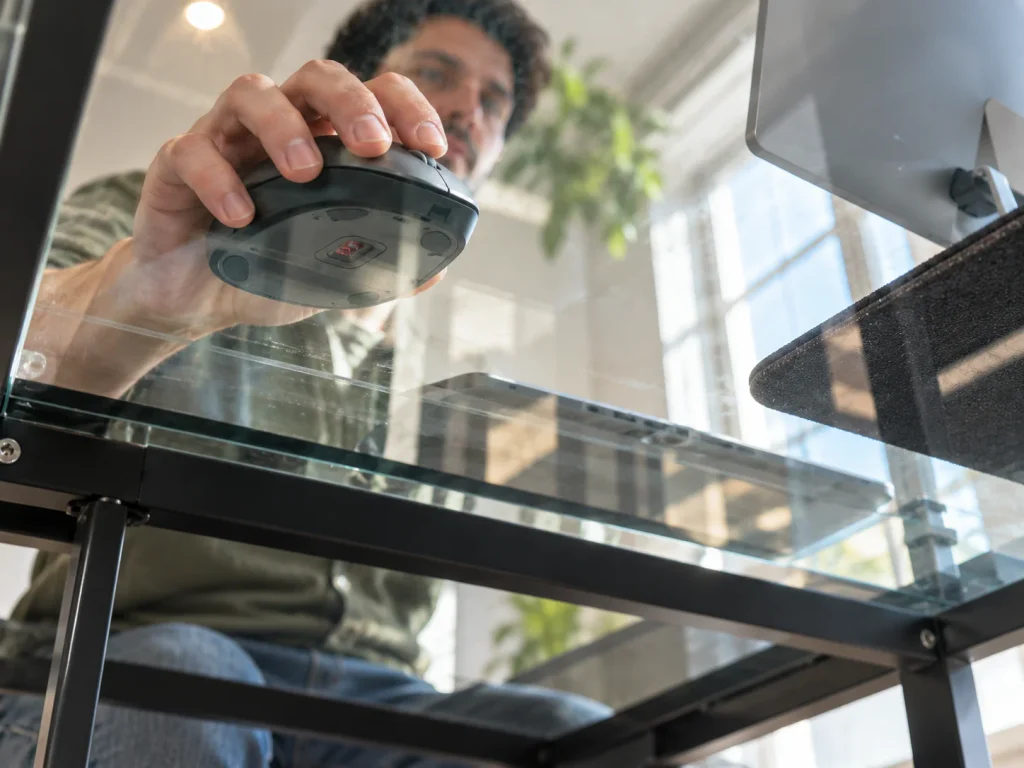
Glass material lets light pass straight through instead of bouncing it back to the sensor. The detector has nothing to compare between frames, so it cannot calculate direction or speed without that reflected light.
That’s why a mouse can glide across a glass desk with the cursor showing zero response at all. Even Apple’s Magic Mouse, known for tracking well on most materials, runs into this exact problem on clear glass. The tracker still works, but the surface patch beneath the sensor provides no details for tracking.
This same issue shows up with any poor surface that reflects or transmits light instead of scattering it. A glass coffee table or a glass-topped desk protector causes the same tracking failure, regardless of price or sensor quality.
If your desk has ever looked spotless but your cursor still stutters, this is probably why. Glass isn’t the only material that gives mouse readers trouble, since several everyday desk finishes cause similar tracking failures.
Let’s see what else commonly interferes with sensor performance:
A stable tracking area gives the tracker the consistent information it needs for accurate movement.

Once you know the surface is the problem, the fix is almost too easy. A mouse pad gives the sensor a consistent texture to read, improving tracking accuracy.
A cloth pad works well for everyday use because it offers control and quieter movement. Hard pads made from plastic, glass, or aluminium provide a smoother glide for users who prefer faster cursor movement.
Your DPI setting can also guide the size you need. Low-DPI users often need more room for wider hand movements, which makes a larger pad a practical choice. Basic tasks generally require less space, so a smaller pad may be enough.
Thickness affects comfort and how the pad sits on your desk. Thicker pads can support your wrist and hide uneven desk surfaces, while thinner pads feel closer to the desk.
Surface finish matters too. A matte, lightly textured surface usually gives optical sensors a reliable pattern to track. Mid-tone colours tend to work well, while glossy or transparent surfaces can cause tracking issues on some mice.
We’ve walked plenty of people through this exact test, and it usually solves the mystery fast. Start by moving the mouse across a plain sheet of paper. If tracking suddenly smooths out, the desk material will be the problem.
Next, check the sensor lens for dust, hair, or grease, since buildup can mimic a material issue even on a good desk. Then test the mouse on two different desks to confirm whether the problem follows the mouse itself or stays with one specific desk.
If the mouse tracks well on paper or a second desk, the sensor detects movements just fine. The original material is what needs to change.
The material beneath a mouse plays as significant a role in performance as the tracker itself. Whether you’re running an optical or laser mouse, a clean, matte desk lets your laser sensor or optical mouse work at full accuracy.
A few minutes of testing can save you from replacing a mouse that never needed replacing. Swap a glass or glossy desk for a simple mat, run the paper test, and you’ll see the difference right away. This holds for wireless mice and wired setups alike, since the substrate is usually what needs attention rather than the mouse itself.
Need help troubleshooting your setup? Contact us for expert advice on finding the right solution.