
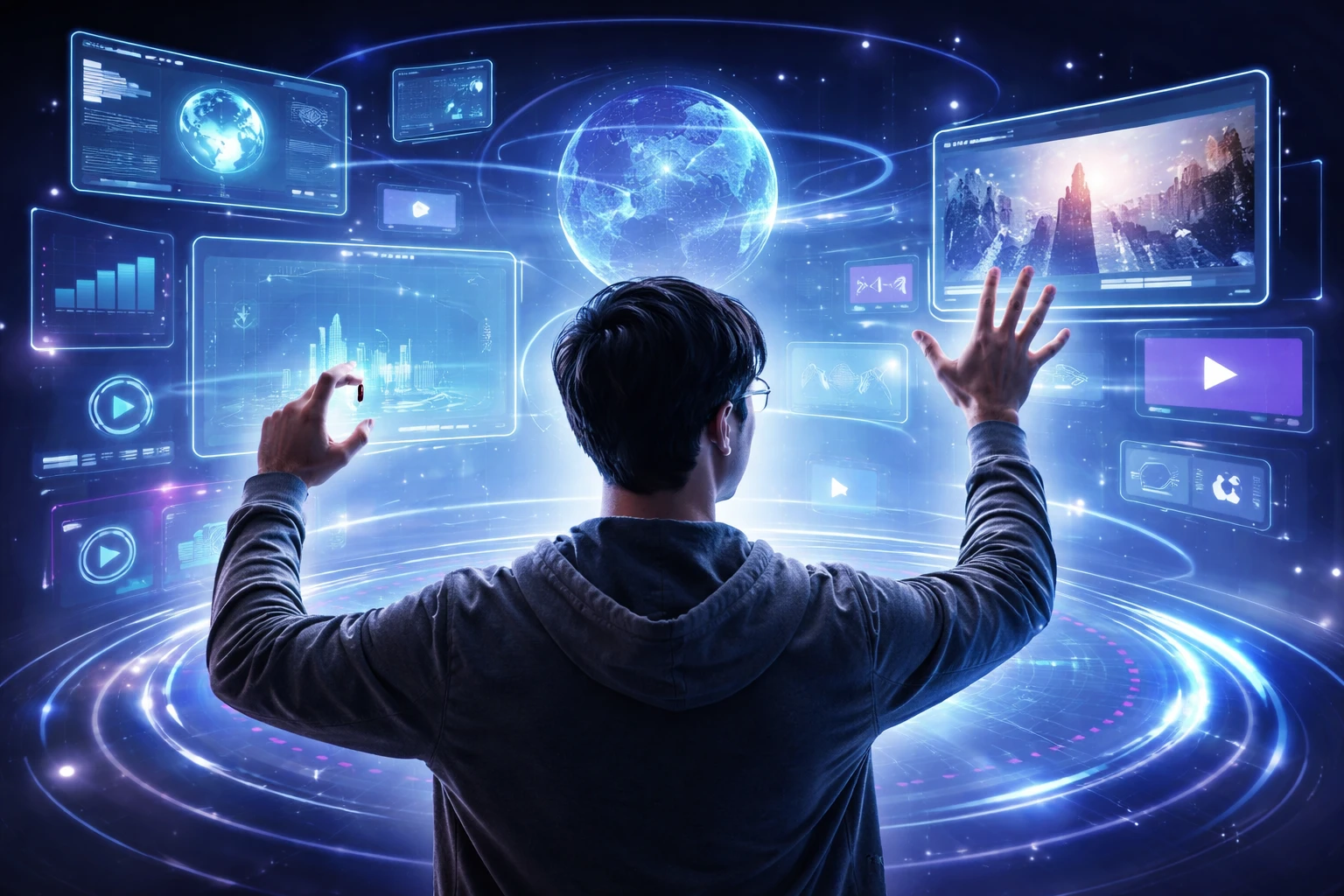
Technology finally caught up to how humans naturally move and communicate. People have been gesturing to express themselves for thousands of years. That’s why interfaces built around motion control are more efficient than forcing everyone to tap tiny buttons.
Designers are paying attention to this now because users are done with cluttered screens and hidden menus. That change is already visible in the market as analysts expect it to reach $117.5 billion by 2032.
In this article, we’ll break down the three main gesture types that will dominate 2026. We’ll show you which UX design problems to consider, and explain why museum audio tours teach better interface lessons than most design courses.
Let’s begin with how motion control actually works.
Motion control lets you interact with devices using natural movements, like hand gestures, eye tracking, or body position, instead of clicking buttons or typing commands. This tech creates more natural interactions because people already use gestures and movement in real-life conversations and communication.
This is why designers now build interfaces that respond to how humans naturally move, rather than forcing button-based patterns that everyone has been using for decades. For example, when someone pinches to zoom or swipes to scroll, they’re using gestures that feel intuitive because the motion matches the result they expect to see.
So, why is everyone suddenly talking about motion control as if it’s brand new, when touchscreens have been around for years?
The difference now is we’re designing for devices that have no screens at all. On top of that, AI systems now need better ways to read commands, and hardware can finally track your movements without killing your battery in an hour.
Here are three main changes that are influencing the new designs.
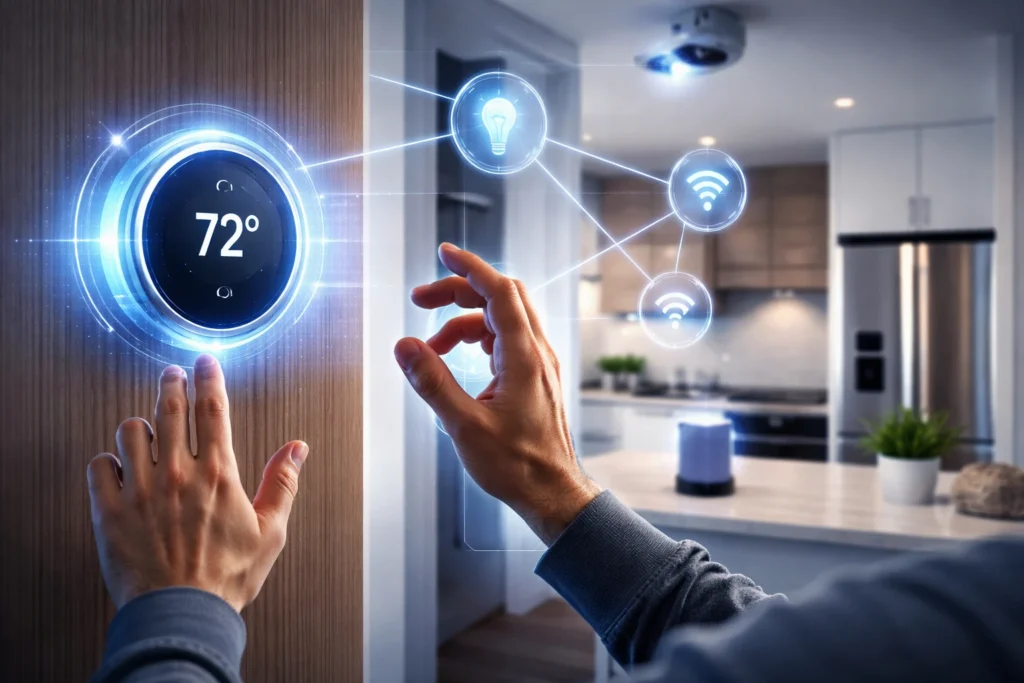
IoT devices like smart locks and temperature sensors need interfaces that work without any display at all. Usually, users manage these through phone apps or simple touch.
But the market for screenless devices grows as homes and offices add more connected sensors. Now, your thermostat, doorbell, and security system all need ways to communicate status without a traditional interface.
Chat interfaces work well for simple questions, but they often fall short when users need complex datasets or spot patterns across multiple sources.
To move beyond that, designers are experimenting with new ways to make AI-driven data more discoverable, understandable, and genuinely useful. Instead of relying only on question-and-answer formats, four major issues are at hand:
These new possibilities require designers to rethink familiar patterns and develop entirely new ways for people to interact with complex information.
Cameras and sensors can now track hand movements with enough precision to make gesture recognition reliable on everyday consumer devices. Users are no longer dealing with the lag or misread gestures that frustrated early adopters just a few years ago.
Also, touchscreens changed interaction design back in 2007, but they still require a display. But the new interfaces coming in 2026 work in your car, on your wrist, or throughout your home without asking you to stare at another screen.
Each gesture is designed for a specific task, such as moving through screens, selecting items, or controlling actions. When designers understand these gesture types, they can create interfaces that feel smooth, clear, and natural to use.
Let’s take a look at some types of gestures that are used universally.
Navigational gestures handle all the movement tasks that used to require dedicated buttons or complex menu systems. These gestures feel natural because they remove the cognitive load of remembering where buttons live. Your muscle memory takes over after a few uses, and navigation becomes automatic instead of deliberate.
These are some navigational gestures:
The interface responds immediately to these navigational gestures, which makes users feel more connected to what they’re manipulating.
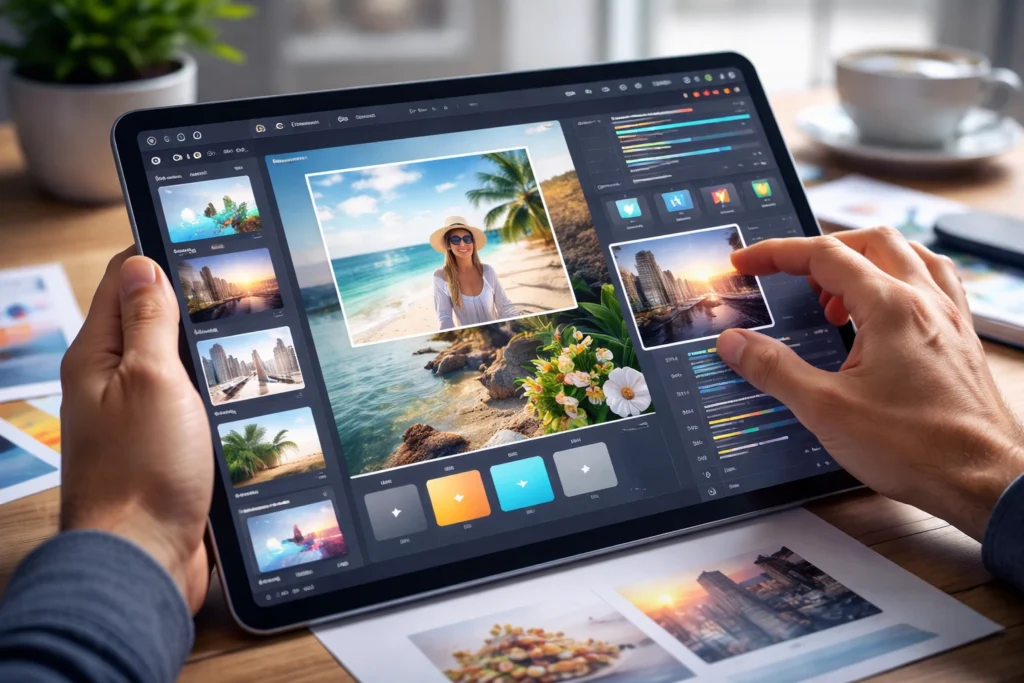
This type of gesture lets you physically manipulate what’s on your screen by dragging, rotating, or resizing content with your fingers. Users prefer transform gestures because they can see results in real time as their fingers move.
The name comes from how these gestures literally transform elements. Like when you change their position, angle, or size through direct touch instead of adjusting sliders or typing numbers into input fields.
They are most effective when you need precise control over how interface elements look or where they sit. Usually, designers rely on transform gestures for any app where users need to arrange, edit, or customize visual content on their own terms.
Action gestures execute specific commands or trigger functions that go beyond just moving around or manipulating content. So the same double-tap performs different actions depending on which app you’re using and what element you’re touching.
Some well-established action gestures are:
Fun Fact: Instagram users double-tap photos over 4.2 billion times per day, and that’s one of the most recognized action gestures on any platform.
Motion control sounds amazing until your users’ arms get tired after 10 minutes of waving at screens. Our hands-on testing showed that even well-designed gesture interfaces create problems that UI designers don’t anticipate until people start using their products for extended periods.
Here are some of the problems you need to watch for:
These might not kill your product, but ignoring them will frustrate users enough that they’ll go back to clicking buttons instead. A good rule of thumb is limiting gesture sequences to three moves or fewer.
Most skilled designers borrow ideas from completely different fields to solve interface problems that nobody’s figured out yet. They find concepts users already recognize from everyday life by looking beyond traditional product design. This makes new technologies feel intuitive and familiar from the start.
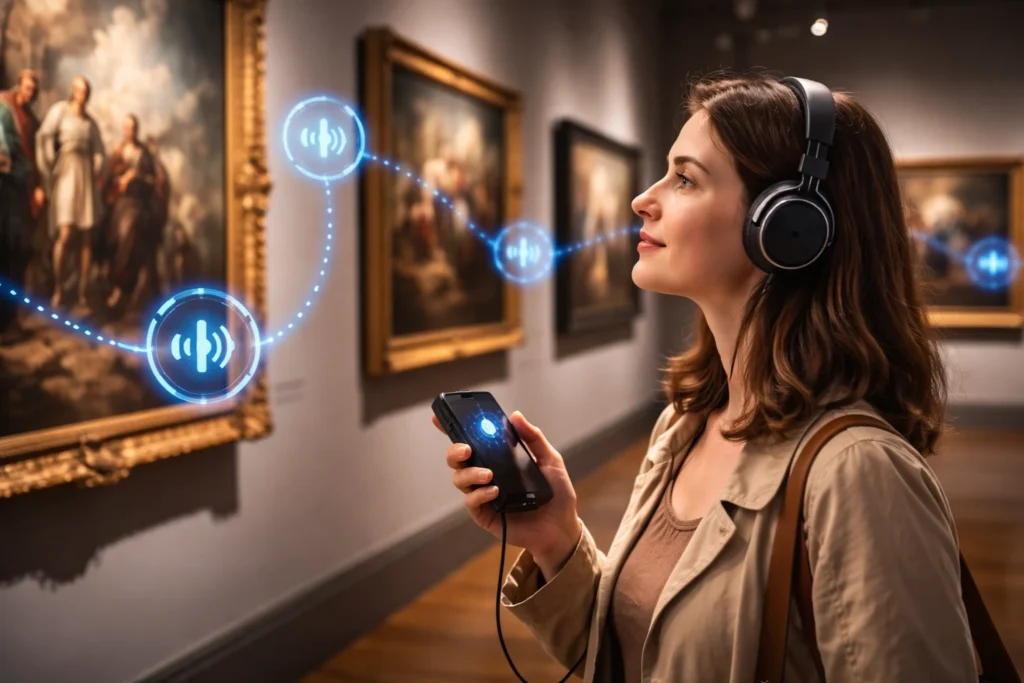
Take a look at two examples:
Ultimately, the best interface ideas come from observing how people naturally move through spaces, communicate with others, and organize their physical world. In that case, designers who study human behavior outside of technology become better equipped to create interfaces that feel natural because they align with patterns users already know.
Motion control enables users to navigate interfaces, manipulate content, and trigger actions without relying on traditional buttons. Different gesture types create digital experiences that feel more natural than clicking through menus. But this becomes effective only when designers avoid the accessibility pitfalls that frustrate real users.
We suggest testing gesture controls in small features before rebuilding your entire interface. It’s because motion control design requires plenty of trial and error to find what’s best for your specific users. You’ll also learn more from one prototype than from reading ten articles about best practices.
At Movea Tech, we’re researching motion-tracking technology and user interface designs that make natural interactions possible for everyone. Visit us to learn more about this topic.