
Your screen can feel slow at high refresh rates because monitor input lag, not the Hz number, delays every action you take. That delay sits between your mouse click and the moment the panel shows the result.
Most buyers chase a 144Hz or 240Hz panel, but few retailers mention the processing delay inside the display. At Movea Tech, we hear from gamers who upgraded their gear and felt almost no change in how the screen responds.
The Hz rating measures how often the screen redraws, while the delay you feel comes from signal processing. This guide covers what creates that delay, how to measure it at home, and which settings cut it down.

Plenty of gamers buy a 240Hz screen and still feel a pause between the click and the reaction on screen. The cause is the processing the display applies to the signal, not the frame rate.
Three sections below trace where the delay starts, what makes it worse, and how to put a number on it.
Input lag is the delay between your action and the corresponding change appearing on screen. When you press a button, the display takes a few milliseconds to show the result, and those milliseconds come from multiple places. Your input devices, the GPU, and the panel itself each contribute a portion of that total, and when added together they form what is called system latency.
The panel hardware on its own adds surprisingly little to that number. The bigger culprit sits at the signal input stage, where the chips responsible for receiving and preparing the video signal introduce most of the delay you actually notice.
What’s more, cheap scaler chips, the small processors that handle resizing the image to fit the screen, are a common source of added lag that a high refresh rate simply cannot fix. In our bench tests, a budget 165Hz panel registered 40 milliseconds of input lag, which is a significant figure regardless of how fast it refreshes.
Bottom line: the number printed on the box tells you how often the screen redraws, not how quickly it responds to your input.
Each processing feature runs on a frame before it reaches your eyes. Noise reduction, motion smoothing, and color boosting each hold frames in a buffer, which adds delay.
On a TV, those features can add 20 to 60 milliseconds. If you have gamed on a living room TV, you will recognize the sluggish feeling. Smart TVs used as computer monitors often show higher lag because manufacturers tune them for film, not fast response.
Measuring monitor input lag at home is straightforward, and you need only a phone camera or a dedicated tester to get started. Point the camera so both the button and the screen appear in the same shot. After recording, count the frames between your key press and the visible change on screen to get your result.
The Leo Bodnar lag tester offers a faster alternative. It plugs into HDMI and displays a reading within seconds, so many reviewers rely on it for consistent results. Most people skip this check before buying a monitor, yet both methods make the process quick and easy to repeat.
Three specs are often confused: refresh rate, response time, and input lag. Most buyers compare refresh rate and response time and overlook input lag.
The table lines all three up side by side.
| Spec | What it measures | Target to look for |
|---|---|---|
| Refresh rate | New frames drawn per second | 144Hz or higher |
| Response time | Pixel shade change, gray-to-gray (GtG) | 1 ms to 3 ms |
| Input lag | Delay from click to visible change | 5 milliseconds or less |
Put simply, response time and refresh rate affect motion clarity. Only input lag tracks how fast the panel answers you, so treat input lag vs response time as two separate questions.
Both are measured in milliseconds, but response time covers pixel changes while input lag covers the delay after your input.
Reducing input lag starts with five changes. Once you know which spec to blame, the fix will be in menus you already own.
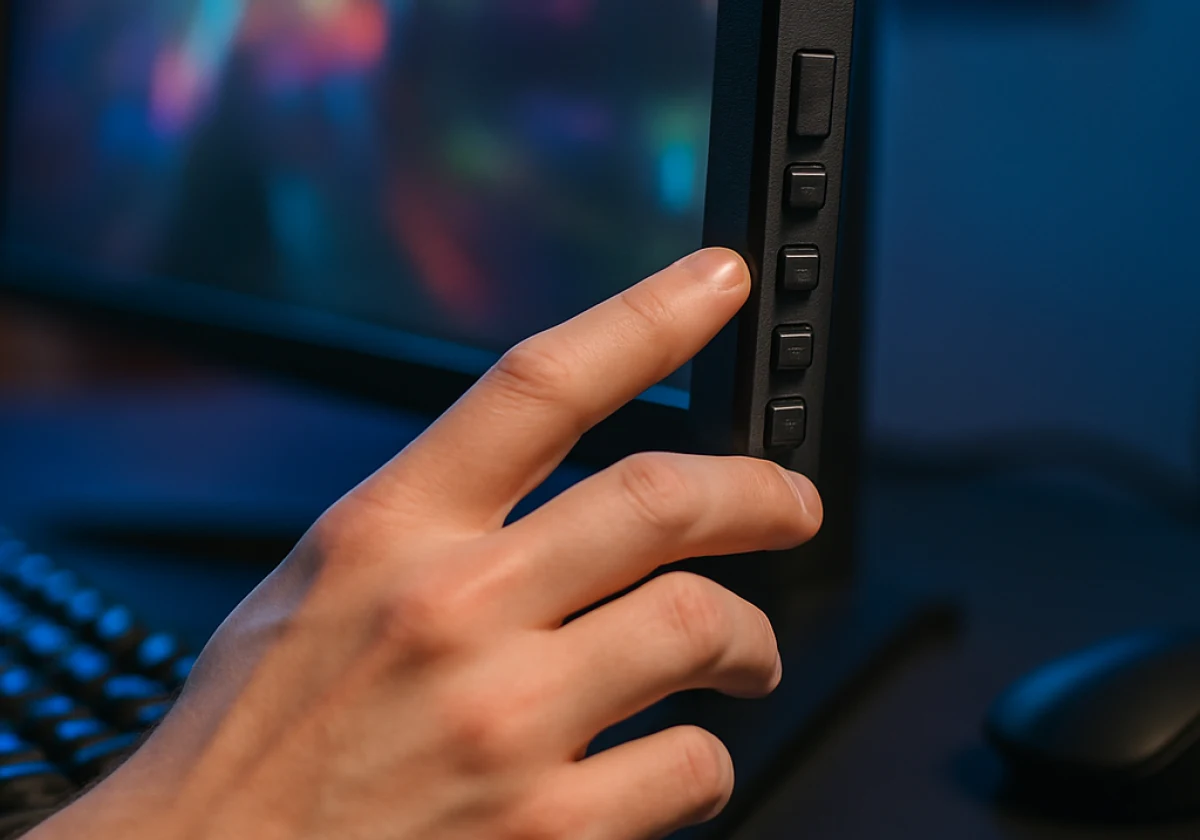
Try these five changes one at a time, starting in your monitor’s on-screen display (OSD) menu:
Verdict: These five changes cost nothing, and they can noticeably reduce delay on many displays. Most of these changes take about ten minutes.
Plenty of people who ask us how to fix input lag have never opened the OSD menu once.
Makers advertise refresh rate prominently, yet most spec sheets do not list input lag. That silence leaves you guessing, so independent reviewers such as RTINGS publish measured lag for many models.
Check your shortlist against those databases and look for anything under 10 milliseconds at the resolution you play at. Competitive players should aim for 5 milliseconds or less.
Panel type affects latency. In our bench tests, TN and fast IPS panels measured the lowest lag. Some OLED and QLED models measured higher with HDR processing on. Adaptive sync, such as FreeSync, matches the refresh rate to your frame rate, which prevents tearing and reduces stutter.
Then look at the cable. HDMI 2.1 supports up to 48Gbps, while HDMI 2.0 supports 18Gbps. A port that cannot carry your resolution and refresh rate forces a lower setting. Confirm your monitor has the port you plan to use, then pair a low-lag panel with a resolution your GPU can drive.
Most gaming monitors skip the heavy processing found in TVs, though some TVs offer low-lag game modes. Honestly, the best high-refresh-rate monitor is the one with low measured lag at your playing settings, not the one with the highest Hz rating
Your screen’s Hz number sells the box. Input lag strongly affects how a game feels, so check the measured delay before you buy.
Test your current setup this week, then compare the result against a lag database. Ten minutes of testing can save you a costly upgrade.
Movea Tech supplies low-latency display and input gear. Contact our team to match your setup with hardware that suits your games.